


GPS Navigation: Road Map Route
4.3685.00 Reviews
App Specs
- Version
- 4.1.0
- Updated On
- License
- Free
- Downloads
- 10,000,000+
- Developer
- Tech 4 All Apps
- Categories
- Maps & Navigation
- Platform
- Android
Screenshots
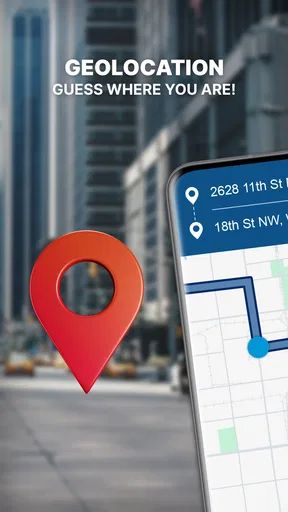
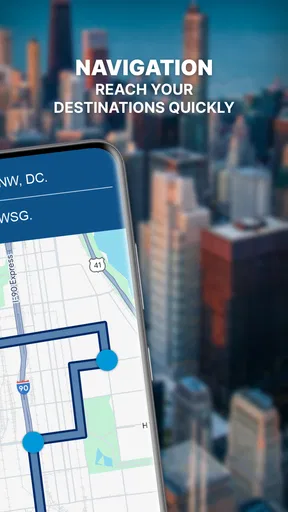
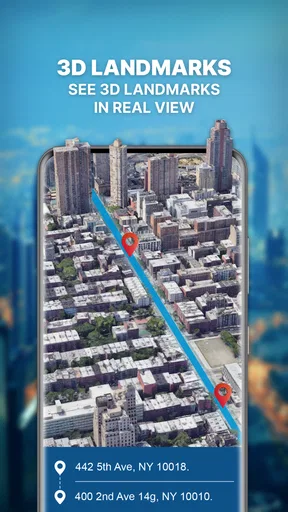
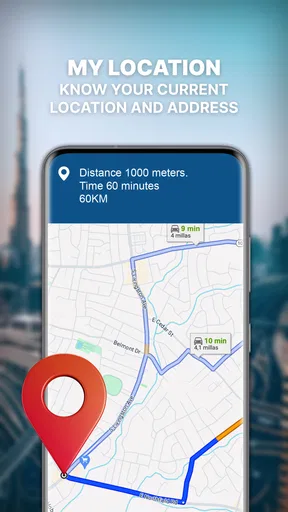
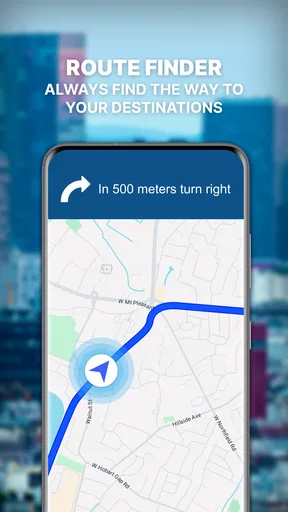
 Analysis by AppCompare
I usually judge a navigation app less by its first impressive drive than by whether I still want to open it after the novelty wears off. GPS Navigation: Road Map Route makes a straightforward first impression: it is built around getting directions and driving maps on screen without making the basic task feel complicated. I can see the appeal for someone who wants an extra navigation option ready for commutes, errands, and unfamiliar roads, rather than a tool that takes time to learn.
Getting comfortable behind the wheel
Upon opening GPS Navigation: Road Map Route, you're greeted with a clean and intuitive interface. It’s like the app holds your hand from the get-go, guiding you through its myriad of features without overwhelming you. The navigation is smooth, and everything is right where you think it should be. This is crucial for someone like me who gets easily frustrated with clunky designs.
What makes a first drive appealing
The app’s focus on GPS directions and road navigation gives it an obvious first-week use: enter a destination, choose a route, and follow the guidance. I value that simple starting point because a navigation tool needs to be usable while I’m planning at home, not just once the car is moving. Before setting off, I’d check the destination and route options while parked, then leave the screen alone and listen for guidance. That small habit is more useful than trying to adjust a route in traffic.
One of the coolest features is the real-time traffic updates. The app keeps you in the loop about traffic jams, road closures, and even those pesky speed traps. It’s like having a savvy co-pilot who’s always got your back. I was impressed by how accurate the updates were during my commutes.
Traffic information is most valuable when it changes a decision, not simply when it adds detail to the map. On a familiar commute, I’d use it to decide whether to stay on my usual road or consider another route; on a longer drive, I’d check again before leaving rather than assume conditions remain the same. I’d still treat arrival estimates as estimates, especially when the trip includes busy junctions or a stop along the way.
Planning for patchy coverage and changing plans
Another neat aspect is the offline maps. You can download maps for entire regions, which is a lifesaver if you’re heading into areas with spotty network coverage. I found this particularly useful during a weekend getaway to a remote cabin. No signal? No problem!
Offline preparation has a practical catch: I would download the relevant region before leaving reliable Wi-Fi and check that the intended destination sits inside the area I saved. A regional map can help keep the route usable where mobile coverage fades, but I wouldn’t treat that as a reason to skip basic trip preparation. Keep the destination written down or saved somewhere accessible, and make sure the phone has enough charge for a long drive.
Worth Reading Before You Choose

Flipboard Shows What News Apps Must Do Beyond the Feed

Switching to Android Auto Means Rethinking Your Driving Routine

Google Calendar Makes a Crowded Week Easier to Manage

Ludo King Makes the Most of the Minutes Between Plans

Baby Panda World Brings Quick Play to Modern Phones, but Its Game Library Feels Busy

ESPN’s Live Game View Makes Following Close Games Easier
For a realistic weekend trip, I’d use the app in two stages. At home, I’d look over the route and save the map for the area around the cabin; before driving, I’d check traffic and make sure the phone is set up where I can hear directions without handling it. If plans change and I decide to stop in a nearby town, I’d pause somewhere safe to choose the new destination. That workflow makes the offline option useful without expecting it to solve every uncertainty on the road.
Route choices, not just a line on the map
Now, let’s talk about the route planning feature. You can customize your routes based on your preferences—fastest time, shortest distance, or even avoiding tolls. I tried plotting a route to a friend’s place using different modes, and it was fascinating to see how the options varied.
Those choices suit different kinds of journeys. The fastest option makes sense when arriving promptly matters; the shortest-distance choice may be appealing for a local errand, though fewer miles do not automatically mean an easier drive. Avoiding tolls can help someone keep a trip within a preferred budget, but it may trade a direct road for a longer alternative. I’d compare the suggested route with what I already know about the area before committing, especially if a route looks unfamiliar or inconvenient.
One useful habit is to compare route options before starting rather than switching between them while driving. If I’m taking a passenger to an appointment, I might favor a predictable route over saving a small amount of distance. On a relaxed outing, I can weigh the alternatives more carefully. The app gives me choices, but the better choice still depends on the road conditions, my priorities, and how much time I have.
The app also offers voice-guided navigation that’s crystal clear. It’s not one of those automated voices that sound like they’re straight out of a sci-fi movie. This one’s soothing and, dare I say, almost human-like. It definitely made long drives less of a chore.
Everyday stops and the passenger’s role
The user experience is pretty seamless. Everything loads quickly, and the app doesn’t drain your battery like some other navigation apps. During my test drives, I didn’t experience any crashes or glitches. It was just me, the road, and GPS Navigation: Road Map Route keeping me company.
There’s also a handy feature for finding points of interest. Whether you’re looking for a gas station, a nice restaurant, or a quick coffee stop, the app’s got suggestions lined up. It even provides reviews, so you know what you’re getting into before you pull over.
For a driver, nearby places are more than map decorations: they can help turn an unplanned need into a sensible stop. If I notice the fuel is low or want a break, I’d pull over before browsing suggestions, compare the review details, and choose a place that fits the route. A passenger can handle that search while the car is moving; if I’m alone, waiting until parked keeps attention where it belongs. I’d also treat reviews as one clue rather than a guarantee that a stop will suit me.
Where it fits among navigation choices
Compared with the familiar map apps many people already use, this one’s strongest case is having another driving-focused option to try, especially if offline maps or route preferences are priorities for a particular trip. It does not need to replace a navigation app that already fits your daily routine. I’d keep it as a useful alternative when planning around coverage or comparing route choices, then decide over repeated drives whether it earns a regular place on my home screen.
That distinction matters because switching navigation apps has a small but real learning cost. Even a clean interface feels less familiar at first: I need to know where route settings are and how I prefer to prepare a map. If my usual app already gives me dependable directions for routine travel, I would not change simply for the sake of trying something new. If I often travel beyond familiar areas, however, a second option can be worth learning before I actually need it.
The upkeep behind long-term usefulness
Offline maps are the feature I’d be most deliberate about maintaining. Before a trip, I’d revisit the saved area and make sure it still covers the places I plan to reach; a map downloaded for one getaway may not be enough for a different route. I’d also check the route while I have a connection, since live traffic updates and a saved map serve different needs. That is a modest routine, but it prevents the mistaken expectation that offline access automatically provides every live detail.
There is also the ordinary upkeep of a navigation habit: keep the phone charged, set the destination before driving, and avoid making the screen a source of distraction. Voice guidance helps reduce the need to stare at the map, but it does not remove the need to drive attentively. For unfamiliar roads, I’d review the broad route before departure so spoken instructions feel like confirmation rather than a stream of surprises.
The app is free to install, while in-app purchases range from $2.49 to $69.99 per item. I’d start with the free experience and only consider a purchase if I knew exactly what extra value I wanted from it. That wide range makes it sensible to check the specific item and its cost before buying, rather than assuming an upgrade is necessary for ordinary navigation.
What may become tiring over time
While the app is fantastic, it’s not without its quirks. I noticed that sometimes, the estimated arrival times were a bit optimistic. On certain occasions, it didn’t account for unexpected detours or slow-moving traffic as accurately as I’d hoped. But hey, nothing’s perfect, right?
That limitation can matter more on a tightly scheduled day than on a casual drive. I wouldn’t use an arrival estimate as a promise when I have a connection to make or someone waiting; I’d leave a buffer and reassess if traffic changes. The app can support a decision, but a driver still needs to allow for parking, stops, and conditions that shift after setting off.
The other possible source of fatigue is simply having one more app to maintain and compare. Traffic notices, route alternatives, and nearby suggestions are helpful when they answer a question I have, but they can feel like clutter if I only want a familiar route home. I’d keep the experience focused on the destination, use optional information when it is useful, and avoid fiddling with settings once the car is moving.
Also, while the app is free, there are some premium features behind a paywall. If you’re a frequent traveler or just someone who loves having all the bells and whistles, you might consider upgrading. But for everyday use, the free version packs quite a punch.
Who is likely to keep using it
GPS Navigation: Road Map Route is a reasonable fit for drivers who want a clear starting point for directions, like comparing route preferences, or sometimes travel through areas where a saved map could help. It may also suit someone who enjoys testing a second navigation tool before a longer trip instead of discovering its layout on the day they need it. The developer is Tech 4 All Apps, and the app sits in the maps and navigation category, with a 4.4 average from around 55,000 ratings and over 10 million installs.
I’d be less inclined to recommend it to someone who is fully satisfied with a familiar navigation app and has no need for another option. It is also not a substitute for checking road signs, using sound judgment, or planning around a strict arrival time. The app is rated for Everyone, and its current version is 4.0.302; it runs on Android 7.0 and later. Those details make it accessible to many Android users, but the best reason to install it is still a practical need, not the download count.
My long-term take
All in all, GPS Navigation: Road Map Route is a solid choice for anyone in need of reliable navigation. It’s got an array of features that cater to both casual users and road warriors alike. I’d recommend giving it a spin, especially if you’re prone to getting lost like yours truly.
For me, its lasting value depends on a simple routine: prepare the route before leaving, save maps when coverage may be uncertain, and use traffic and place suggestions when they answer a real need. If those habits match the way you travel, the app can remain useful beyond the first few drives. If your current navigator already handles those jobs comfortably, there is no strong reason to switch your everyday routine.
So, next time you’re planning a trip, why not let this app be your trusty sidekick? You might just find that the road less traveled becomes a little more navigable with GPS Navigation: Road Map Route at your fingertips.
Pros
- User-friendly interface for easy navigation.
- Accurate real-time traffic updates.
- Customizable route options available.
- Offline maps for data-saving mode.
- Voice-guided directions enhance safety.
Cons
- Occasional GPS signal drops in tunnels.
- High battery consumption during use.
- Large app size requires ample storage.
- Limited language options for voice guidance.
- In-app ads can be distracting at times.
FAQs for GPS Navigation: Road Map Route
What features does GPS Navigation: Road Map Route offer?
GPS Navigation: Road Map Route provides real-time traffic updates, turn-by-turn voice navigation, and offline maps for seamless travel. It includes multiple route options, speed limit alerts, and points of interest along your journey. The app integrates with your calendar to suggest routes and provides estimated arrival times based on traffic conditions.
Is GPS Navigation: Road Map Route available offline?
Yes, GPS Navigation: Road Map Route allows users to download maps for offline use. This feature is particularly useful in areas with poor internet connectivity. To access offline maps, simply download the specific region you need beforehand, ensuring that you have uninterrupted navigation throughout your journey.
How accurate is the real-time traffic information?
The app utilizes up-to-date data from various sources to provide accurate real-time traffic information. While it aims to deliver precise data, occasional discrepancies may occur due to rapidly changing traffic conditions or unexpected incidents. Regular updates and user feedback help improve the app’s accuracy and reliability.
Does the app drain the phone’s battery significantly?
GPS Navigation: Road Map Route is designed to optimize battery usage, but like most navigation apps, it can still impact battery life during extended use. To minimize battery drain, ensure that your device is fully charged before a long trip and consider using a car charger if available. Adjusting screen brightness and disabling unnecessary background apps can also help conserve power.
Is there a cost associated with using GPS Navigation: Road Map Route?
The app offers a free version with basic features, while premium features, such as ad-free usage, advanced navigation options, and additional map downloads, may require a subscription. Check the app store for the latest pricing details and any available promotions or discounts.


